
Android widget
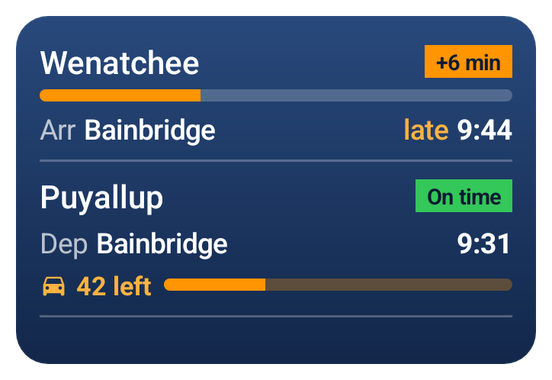
Every boat on your route on your home screen: where it is, when it leaves, and how many car spaces are left.
The widget comes with Find My Ferry Plus. To get it, open Find My Ferry, tap Settings, then Get Plus. Without it, the widget says "Widgets come with Plus", and tapping it opens Get Plus.
1. Pick your route
- Open Find My Ferry and tap Settings.
- Tap Widget route.
- Tap your route, then Use this route.
The widget shows this route. To change it later, do the same again. Alerts for this route, under it in Settings, sends you alerts for the same route.
Driving on? Turn on Car mode in Settings too. Docked boats then show how many drive-up car spaces are left on their next sailing, in the app and in the widget.
2. Add it to your home screen
- Touch and hold an empty part of your home screen.
- Tap Widgets.
- Find Find My Ferry, then touch and hold the widget and drag it onto your home screen.
The names of these buttons differ a little from phone to phone.
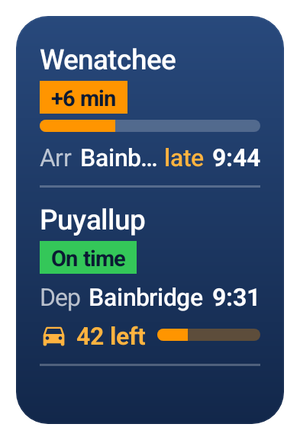
To make it bigger or smaller, touch and hold the widget, then drag its edges. A narrow widget shows each boat in a compact layout; a wider one has room for more. Scroll the widget to see every boat on the route. Tap it to open the app on your route.
How current is it?
The widget updates about every 15 minutes, and right away when you open Find My Ferry. Your phone may update it less often in Battery Saver. When what it shows may be old, it says when it's from, like "Updated 9:40".
Have a Wear OS watch? See Wear OS. Still stuck? See Support or email support@findmyferry.com.